News VisioMapper has been acquired by SwiftPM Tool and now lives inside it as Mapper.

Now part of SwiftPM Tool

Turn a screenshot into an org chart you can actually edit.

Snap your Microsoft Teams org chart, paste a list of names, or just describe a goal. VisioMapper builds a clean, editable chart in seconds: org charts, accountability charts, workflows and call flows.

  • No drawing tools to learn
  • Drag boxes, the structure follows
  • Export to PNG in one click
swiftpmtool.com/mapper
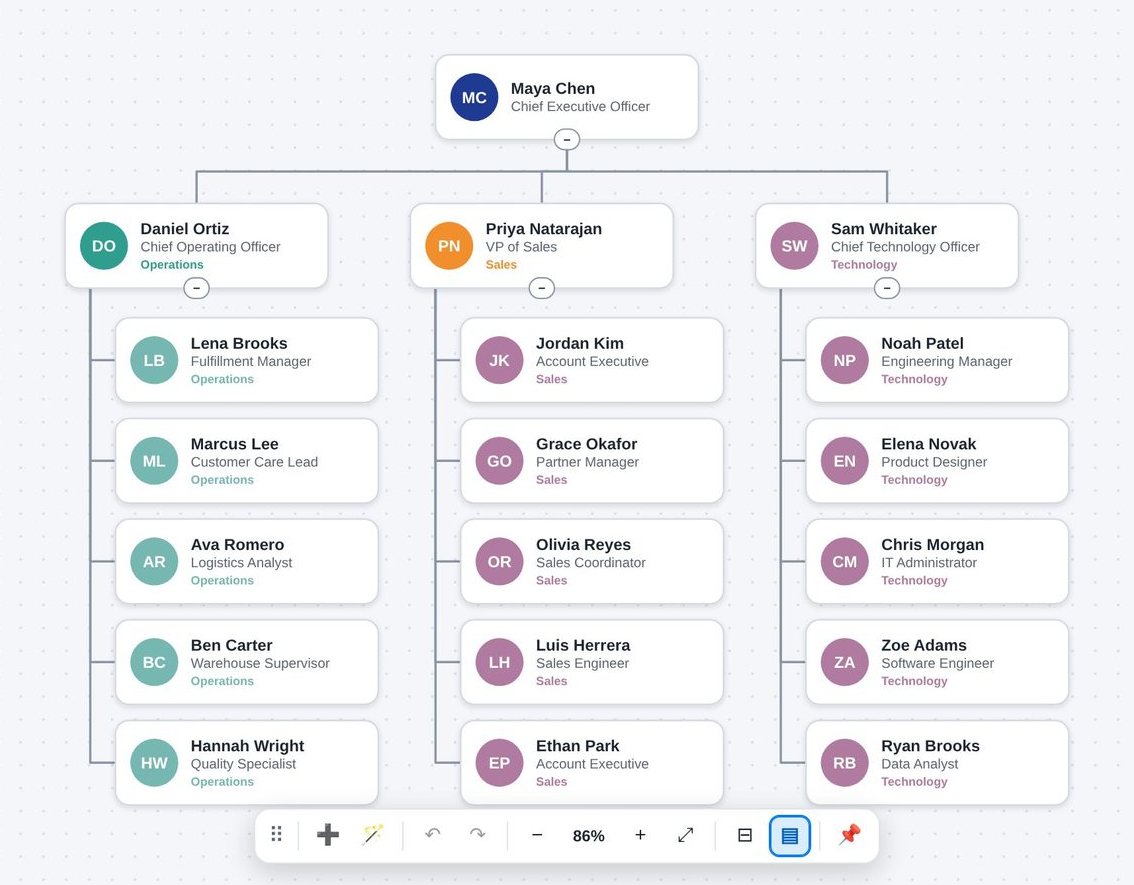
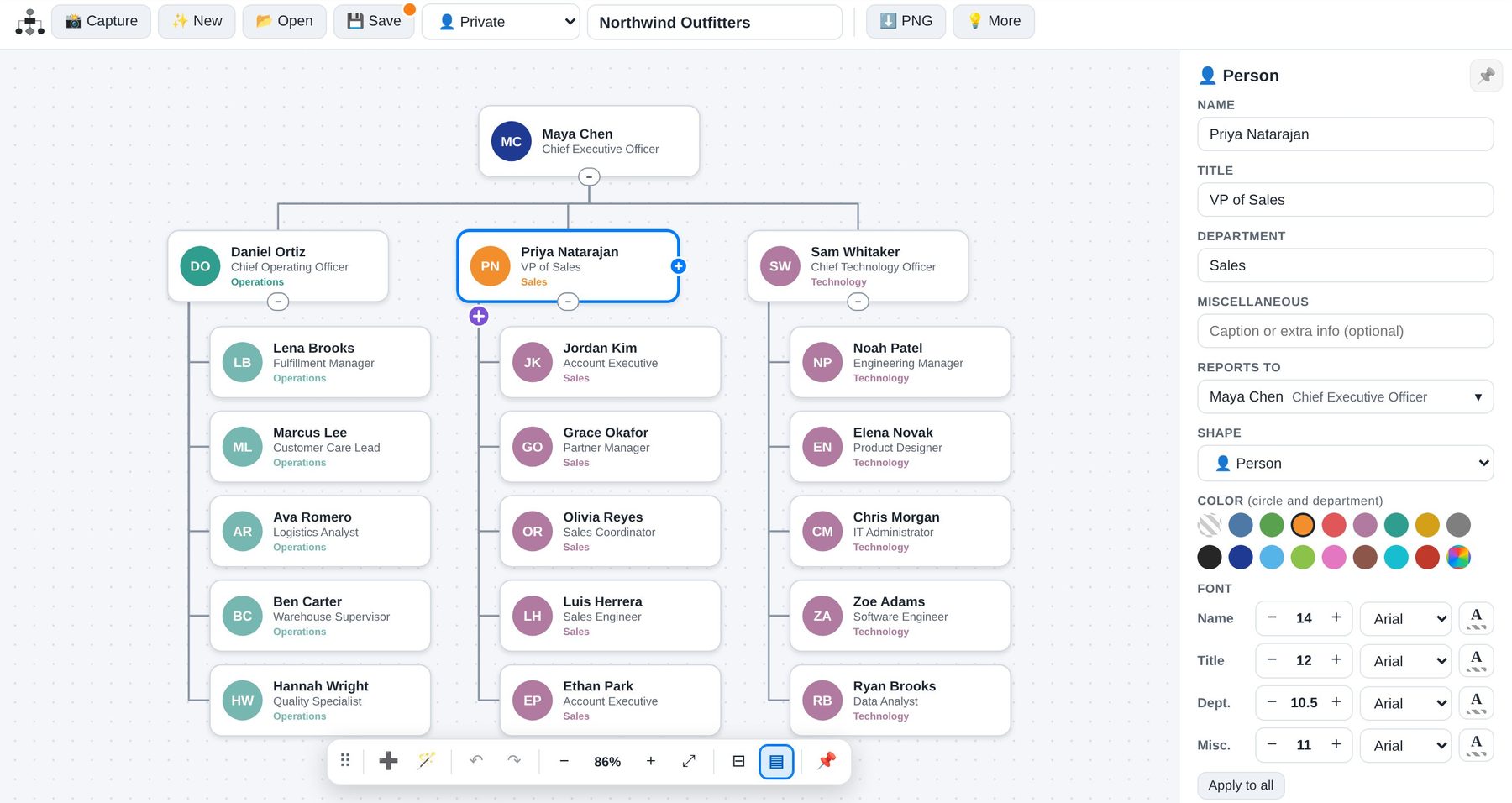
An org chart in Mapper with colored departments for Operations, Sales and Technology
📸
Screenshot inTeams org chart detected
✅
19 people mappedReporting lines kept
4chart types
3ways to start
600+people per chart, easily
1 clickPNG export

How it works

Three ways to start. Zero blank-page panic.

Most chart tools hand you an empty canvas and a toolbox. VisioMapper starts from what you already have.

📸

From a screen capture

Paste or upload a screenshot, for example a Microsoft Teams org chart. VisioMapper reads the names, titles and reporting lines and rebuilds them as an editable chart.

Add more captures any time to build out other departments in the same chart.

📝

From names and titles

Type or paste people as “Name - Title”. VisioMapper works out who reports to whom from their titles and lays out the whole team for you.

Great for new teams, reorgs and “what if” planning.

🎯

From a goal

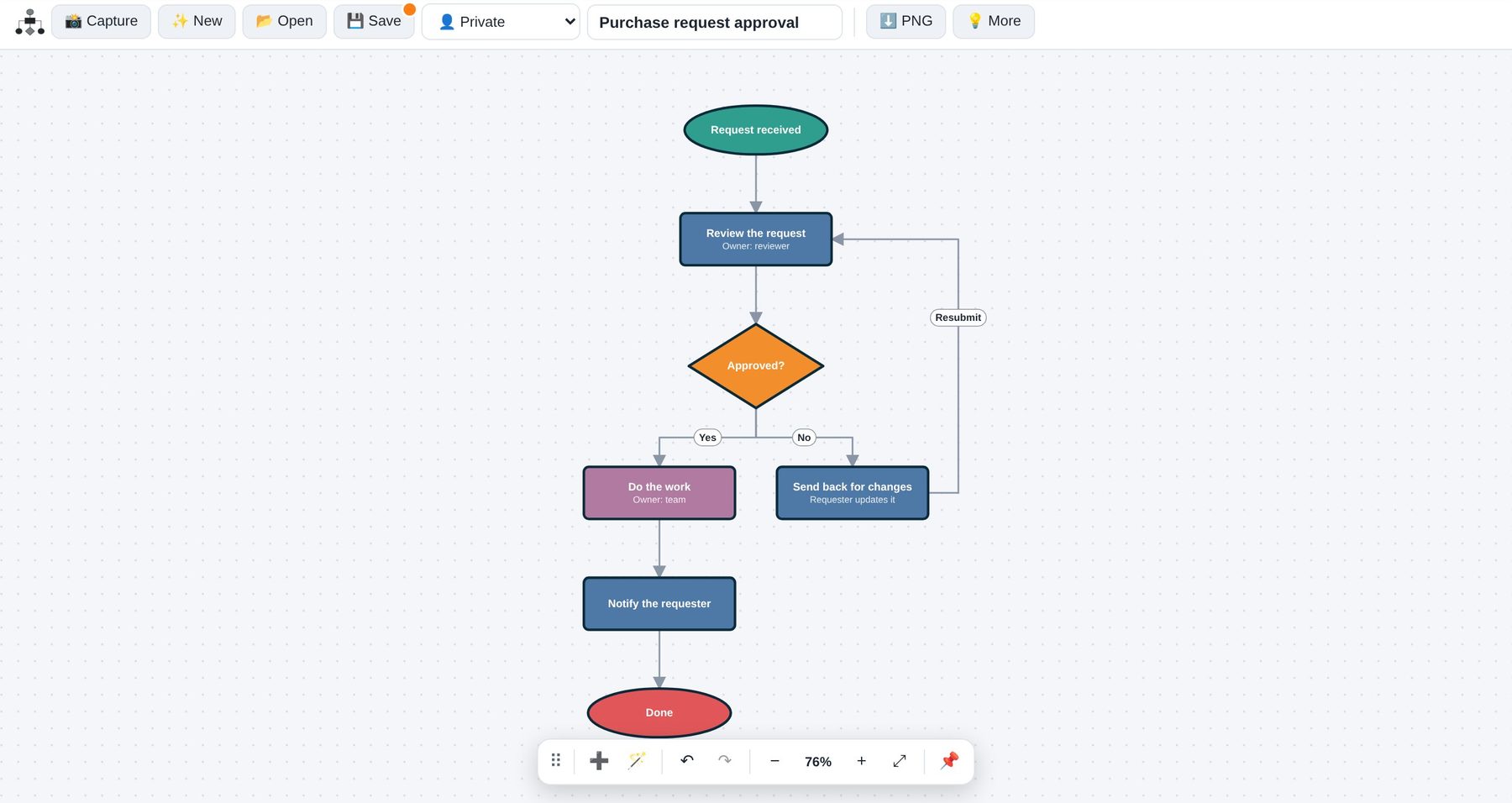
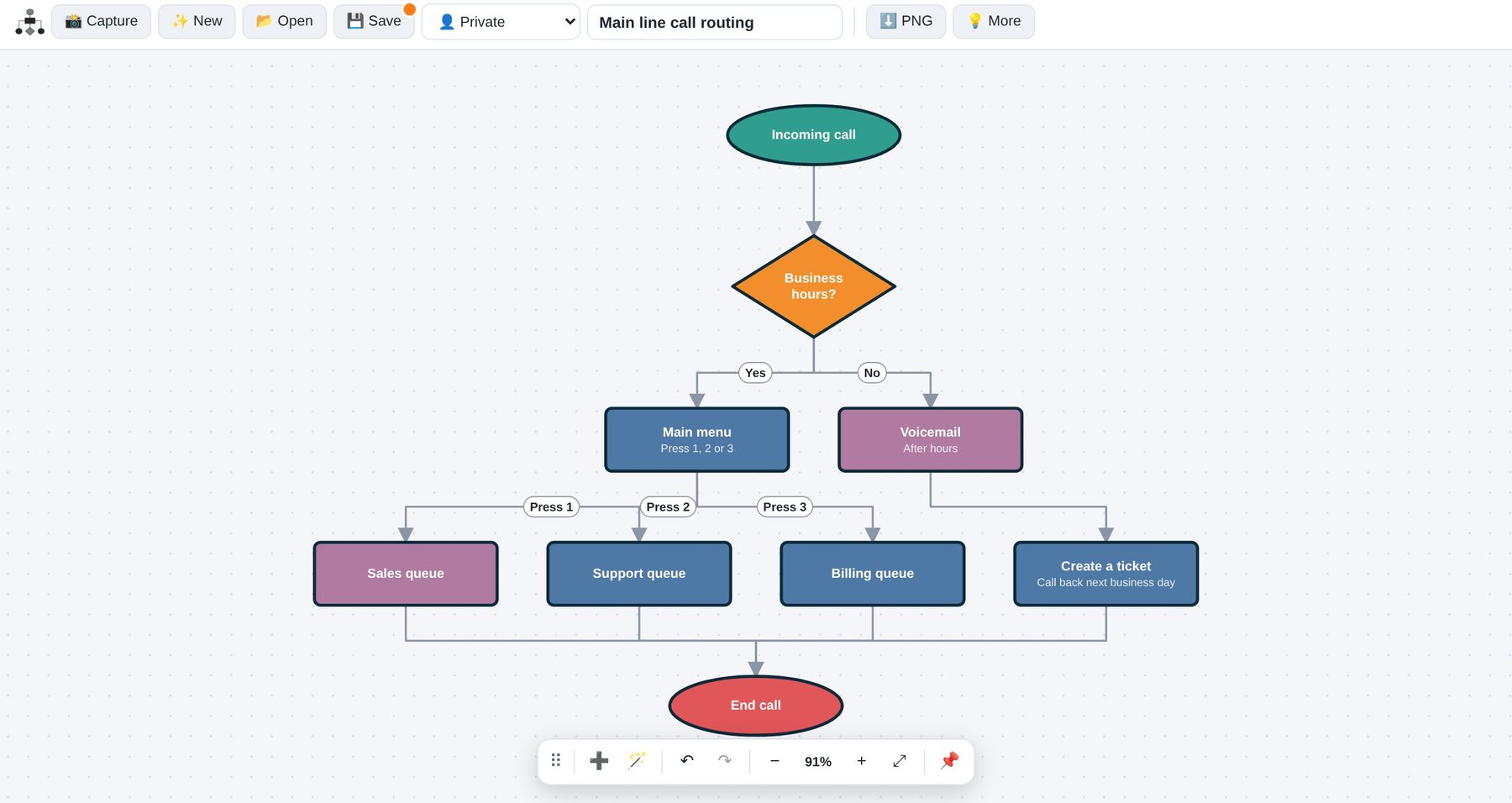
Describe what you’re trying to achieve, like “approve purchase requests” or “route after-hours calls”, and VisioMapper drafts the workflow or call flow.

Decisions, branches and loops are drawn for you.

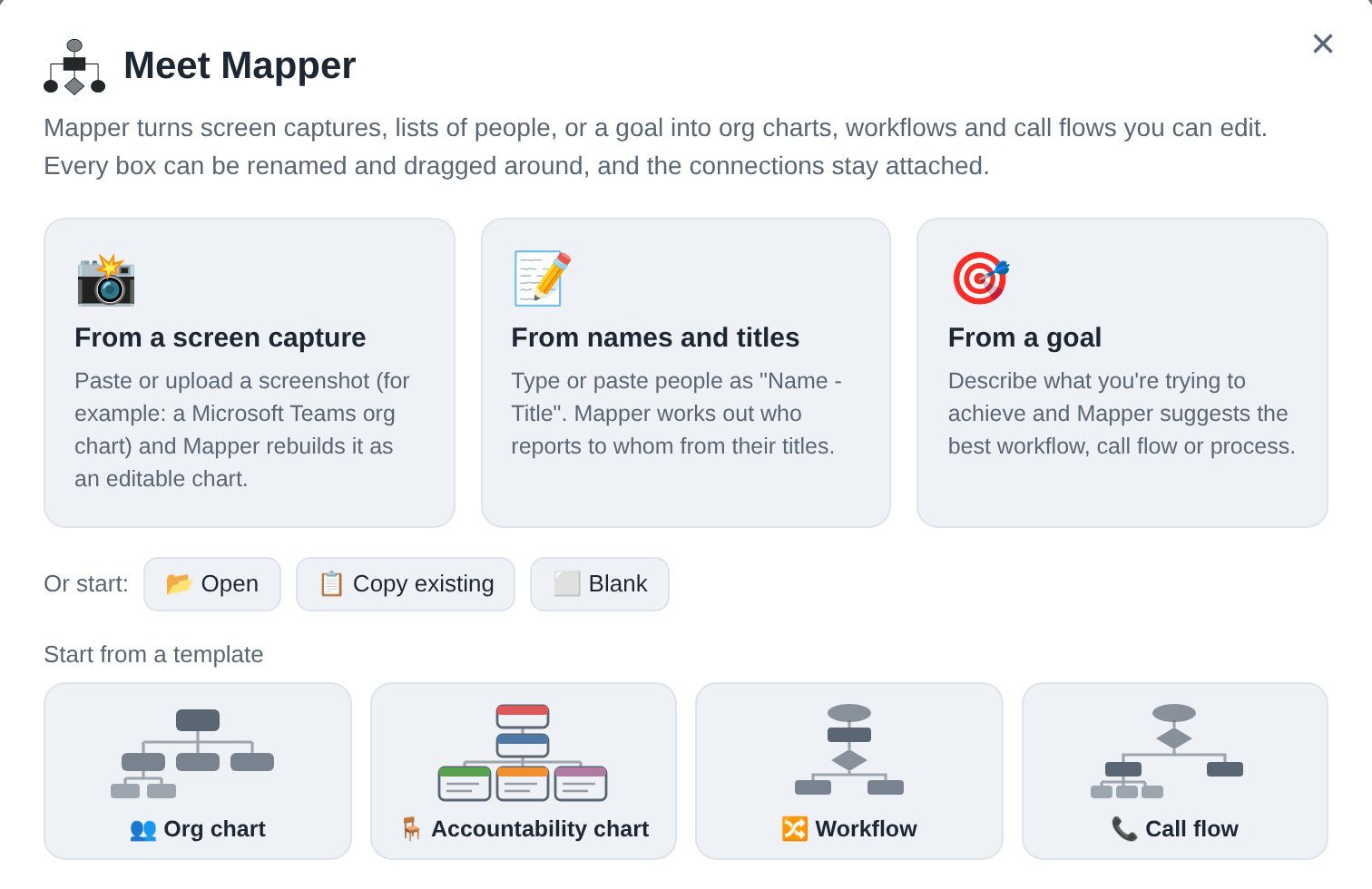
The Mapper start screen with options to start from a screen capture, from names and titles, or from a goal, plus templates
Pick a starting point, or jump straight into a ready-made template.

Chart types

One tool for people, seats and processes.

Org charts that keep their shape

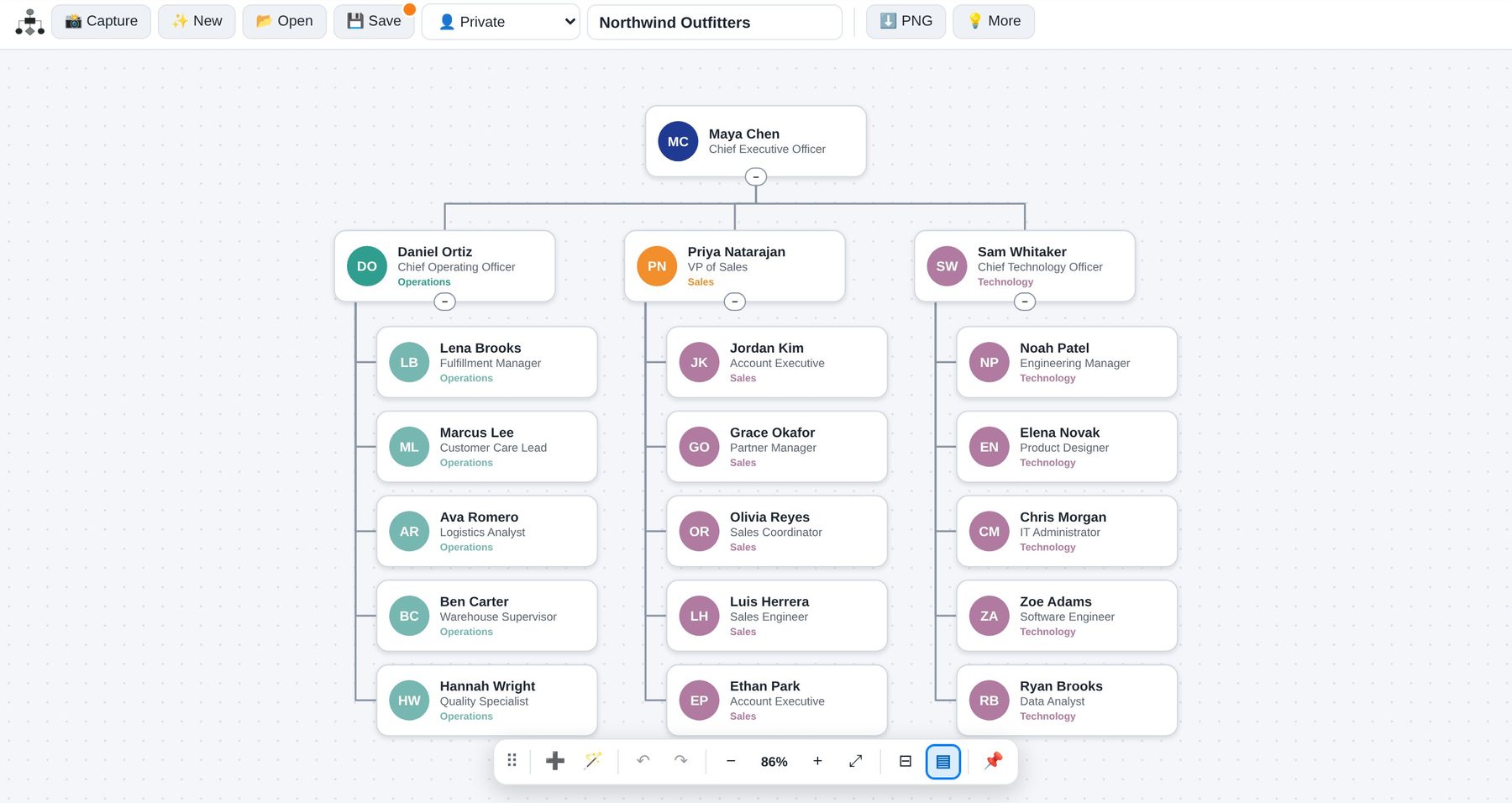
Every box shows a name, title, department and an optional note. Drag a manager and the whole team moves with them. Move people up and down among peers, or drop them onto a new manager.

  • Departments color coded automatically
  • Large teams stack neatly instead of stretching off screen
  • Searchable “Reports to” picker for big organizations
  • Collapse and expand any branch
Org chart example

Features

Everything you need, nothing you have to fight.

🧲

Snap guides

Boxes snap into line with their neighbors, with guide lines so you can see what they’re aligned to.

🪄

Auto-tidy

Turn it on and the chart rearranges itself cleanly after every change.

🧩

Move with team

Drag a leader and their whole team comes along, so reporting lines never break.

📚

Stacked teams

Big teams stack into tidy columns instead of one endless row.

➕

Quick add

One click adds a direct report or a peer right where it belongs, never on top of another box.

↕️

Reorder peers

Move people up or down among their peers with buttons, keyboard shortcuts or a simple drag.

📐

Box sizes

Compact, Standard or Wide per chart. Wide boxes wrap long titles instead of cutting them off.

🔤

Fonts per line

Set size, typeface and color for names, titles, departments and notes, for one box or the whole chart.

🎨

16 colors plus custom

A bold palette for departments and steps, plus a color wheel when you need an exact brand color.

🔒

Private, public or locked

Keep a draft to yourself, share it with everyone, or lock it so only the owner and leaders can edit.

📝

Drafts and copies

Work on changes privately before publishing, or copy an existing chart as a starting point.

🖼️

PNG export

Download a crisp image for slides, emails, onboarding packs and wikis.
Editing

Click a box. Change anything.

Names, titles, departments, notes, colors and fonts are all one click away in a side panel that gets out of your way when you’re done. Double-click any box to edit it right on the chart.

  • Undo and redo for every change
  • Floating canvas toolbar you can move or dock
  • Pin the panel open, or let it close when you click away
  • Apply a font style to every box at once
Try Mapper free
swiftpmtool.com/mapper
Editing a person in Mapper with name, title, department, colors and font settings

Big news

VisioMapper is now part of SwiftPM Tool.

SwiftPM Tool has acquired VisioMapper, and it now ships inside SwiftPM Tool as Mapper. Your charts sit right next to your projects, so the people on your org chart and the work on your board finally live in one place.

  • 🗂️
    Kanban boardProjects and Action Cards everyone can see
  • 🧭
    DashboardsA clear view of what’s on track and what isn’t
  • 🗺️
    RoadmapPlan what’s coming and when
  • 🎯
    Goals and KPIsTrack the numbers that matter
  • MapperOrg charts, accountability charts, workflows and call flows

Questions

Good to know

Do I need Microsoft Visio or Teams?

No. VisioMapper runs in your browser. If you happen to use Microsoft Teams, you can screenshot its org chart and VisioMapper will rebuild it as a chart you can edit.

What happens to VisioMapper now?

VisioMapper is now Mapper, part of SwiftPM Tool. You’ll find it in the SwiftPM Tool header, right next to the Kanban board, Dashboard, Roadmap, Goals and KPIs.

Can I share charts with my team?

Yes. Keep a chart private while you work on it, publish it for everyone in your organization, or lock it so only you and your leaders can make changes. Anyone can download a PNG.

Can it handle a big organization?

Yes. Add several screenshots to build out each department, collapse branches you’re not working on, and use the searchable “Reports to” picker to move people around in charts with hundreds of people.

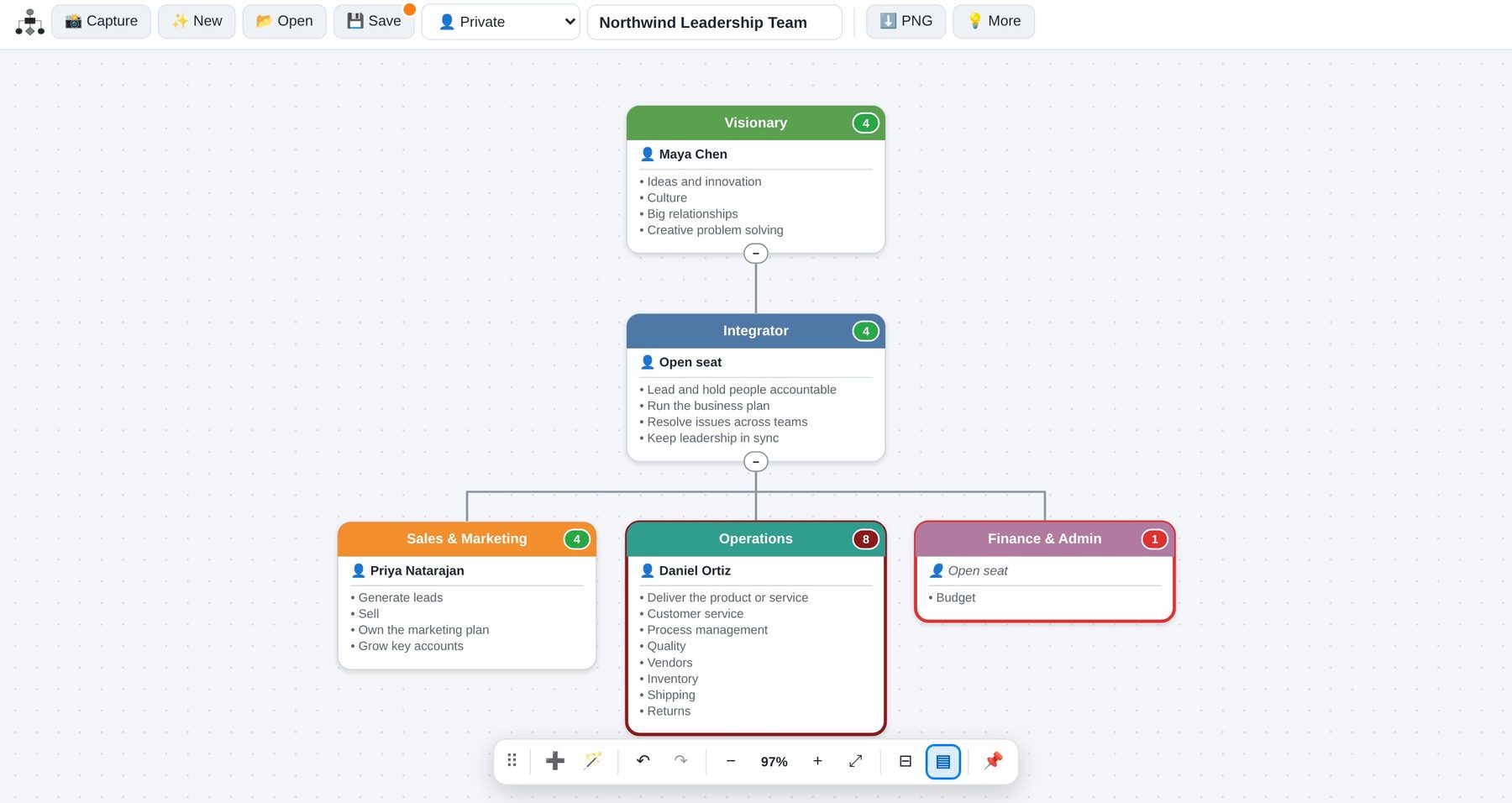
What is an accountability chart?

Instead of people, it maps the seats your business needs and the 3 to 7 key responsibilities of each seat, then shows who sits in each one. VisioMapper flags seats with too few or too many responsibilities so you can fix gaps before they become problems.

Your next org chart is one screenshot away.

Start free with Mapper, or explore everything else SwiftPM Tool can do for your team.